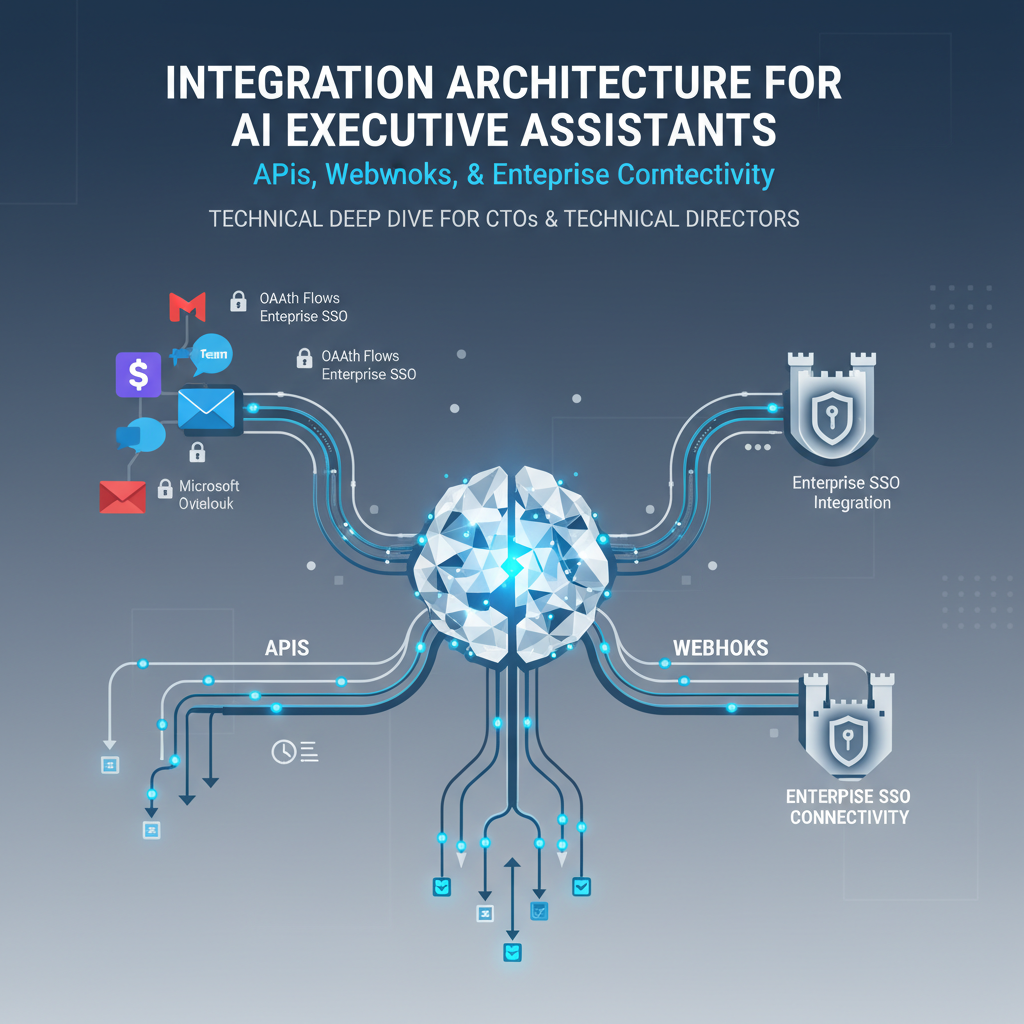
You don't want to change how you work - you want AI to work with the tools you already use. This guide covers how AI executive assistants integrate with Gmail, Outlook, Slack, Teams, Calendar, and what you need to know as an executive evaluating these solutions.
When evaluating AI assistants, you're asking:
- "Will it work with my Gmail/Outlook?" Yes, but how?
- "Can it access my calendar?" Yes, but is it secure?
- "Does it work with Slack/Teams?" Yes, but what permissions does it need?
- "Will it disrupt my workflow?" No, it should enhance it.
What Good Integration Means:
- No workflow changes: Works within tools you already use
- Secure access: Industry-standard security (OAuth, encryption)
- Seamless experience: AI actions feel native to each platform
- Full control: You approve everything before it's sent
Step 1: Connect Your Accounts
- Click "Connect Gmail" (or Outlook, Slack, etc.)
- You authenticate with your existing account
- AI gets permission to read/write (with your approval)
Step 2: AI Monitors and Acts
- AI watches for emails, messages, calendar events
- When action is needed, AI drafts response/action
- Queues everything for your approval
Step 3: You Approve and Execute
- Review AI's drafts in one approval queue
- Approve, edit, or reject with one click
- AI executes approved actions across platforms
That's it. No complex setup, no workflow changes.
Email (Gmail, Outlook):
- Read: AI reviews your emails, identifies what needs attention
- Draft: AI drafts replies in your voice
- Send: Only after your approval
- Organize: AI can categorize, prioritize, summarize
Calendar (Google Calendar, Microsoft 365):
- Read: AI checks your availability
- Schedule: AI proposes meeting times
- Update: AI updates calendar after approval
- Coordinate: AI finds times that work for everyone
Messaging (Slack, Teams, WhatsApp):
- Read: AI monitors channels/DMs for mentions, questions
- Draft: AI drafts responses
- Send: Only after your approval
- Summarize: AI summarizes long threads
Voice (Phone Calls):
- Transcribe: AI transcribes your calls
- Extract: AI extracts action items, decisions
- Follow-up: AI drafts follow-up emails/messages
Industry-Standard Security:
- OAuth Authentication: Same security as connecting any app to Gmail/Slack
- Encrypted Storage: Your data encrypted at rest
- Encrypted Transmission: All data encrypted in transit (TLS)
- No Data Sharing: Your data never shared with third parties
What This Means:
- Same security standards as other enterprise apps you use
- Your data stays private and secure
- You control what AI can access
- You can revoke access anytime
Email (Gmail/Outlook):
- Read emails: To review and draft replies
- Send emails: To send approved drafts
- Modify emails: To organize, label, archive
Calendar:
- Read calendar: To check availability, detect conflicts
- Create events: To schedule meetings
- Modify events: To reschedule, update
Slack/Teams:
- Read messages: To monitor channels, respond to mentions
- Send messages: To send approved messages
- Read user info: To identify who's messaging you
Why These Permissions:
- AI needs to read to understand context
- AI needs to write to take actions (with your approval)
- All actions require your approval before execution
What It Is:
- Sign in once with your company credentials
- No separate password for AI assistant
- Works with Azure AD, Google Workspace, Okta, etc.
Why It Matters:
- Security: Centralized authentication, easier to manage
- Compliance: Meets enterprise security policies
- Convenience: One login for everything
What to Ask:
- "Do you support SSO with [your identity provider]?"
- "Can we require SSO for all users?"
- "How does SSO work with your approval workflows?"
What It Is:
- Where your data is stored (US, EU, etc.)
- Important for compliance (GDPR, regional regulations)
Why It Matters:
- Compliance: Some regulations require data in specific regions
- Performance: Data closer to you = faster performance
- Control: You choose where your data lives
What to Ask:
- "Where is my data stored?"
- "Can I choose the data region?"
- "Do you support data residency requirements?"
What It Is:
- Complete log of all AI actions
- Who approved what, when, and why
Why It Matters:
- Compliance: Required for many regulations
- Accountability: Know what AI did and when
- Debugging: Understand what happened if something goes wrong
What to Ask:
- "What audit trails do you maintain?"
- "How long are logs retained?"
- "Can I export audit logs?"
Seamless Experience:
- AI actions feel native to each platform
- No awkward formatting or broken messages
- Consistent with your communication style
Reliable:
- Integrations work consistently
- No frequent disconnections
- Fast response times
Intelligent:
- AI understands context across platforms
- Coordinates actions intelligently
- Learns your preferences over time
Avoid Vendors That:
- Require you to change your workflow
- Don't support your primary tools (Gmail, Outlook, etc.)
- Have frequent integration outages
- Require complex technical setup
- Don't provide clear security documentation
The Setup:
- Connect Gmail account
- Connect Google Calendar
- AI can now:
- Review emails and draft replies
- Check calendar availability
- Schedule meetings based on email requests
- Send calendar invites via email
The Benefit:
- Email and calendar work together seamlessly
- Meeting requests in email automatically checked against calendar
- No manual coordination needed
The Setup:
- Connect Outlook email
- Connect Microsoft 365 Calendar
- Connect Microsoft Teams
- AI can now:
- Review emails and draft replies
- Schedule meetings and send Teams invites
- Post meeting summaries in Teams channels
- Coordinate across all Microsoft tools
The Benefit:
- Full Microsoft 365 integration
- Everything works together
- Native Microsoft experience
The Setup:
- Connect Gmail
- Connect Google Calendar
- Connect Slack
- Connect WhatsApp
- AI coordinates across all platforms
The Benefit:
- One AI assistant for all your tools
- Coordinated actions across platforms
- Single approval queue for everything
Must-Have:
- ✅ Works with your primary email (Gmail or Outlook)
- ✅ Works with your calendar (Google Calendar or Microsoft 365)
- ✅ Works with your messaging (Slack, Teams, or both)
- ✅ Secure authentication (OAuth, SSO support)
- ✅ Approval-first model (nothing sends without approval)
Nice-to-Have:
- ✅ WhatsApp integration
- ✅ Voice call transcription
- ✅ Document integration (Google Drive, OneDrive)
- ✅ Task management integration
- ✅ CRM integration (Salesforce, HubSpot)
Security:
- "What security certifications do you have? (SOC 2, etc.)"
- "How is my data encrypted?"
- "Do you support SSO?"
- "Where is my data stored?"
Integration:
- "Which tools do you integrate with?"
- "How long does setup take?"
- "What happens if an integration goes down?"
- "Can I see a demo of the integration?"
Control:
- "How do I approve AI actions?"
- "Can I revoke access anytime?"
- "What audit trails do you maintain?"
- "Can I export my data?"
Step 1: Sign Up
- Create account (or use SSO if available)
- Choose your plan
Step 2: Connect Tools
- Connect email (Gmail or Outlook)
- Connect calendar
- Connect messaging (Slack, Teams, etc.)
- Each connection takes 1-2 minutes
Step 3: Configure Preferences
- Set your communication style
- Define approval rules
- Set up automation preferences
Step 4: Start Using
- AI starts reviewing emails, messages
- Drafts queue for your approval
- You approve and AI executes
Total Setup Time: 10-15 minutes.
What You Manage:
- Approval queue (review and approve actions)
- Preferences (adjust as needed)
- Integrations (add/remove tools)
What AI Manages:
- Monitoring emails, messages, calendar
- Drafting responses and actions
- Coordinating across platforms
- Maintaining security and compliance
"Will AI have access to all my emails?"
- Yes, but only to review and draft replies. Nothing sends without your approval. You can revoke access anytime.
"What if I want to disconnect a tool?"
- You can disconnect any integration anytime. AI stops accessing that tool immediately.
"Can I limit what AI can do?"
- Yes. You set approval rules, define what AI can automate, and approve every action.
"What if an integration breaks?"
- Good vendors have monitoring and alerting. You're notified immediately if there's an issue.
"How do I know it's secure?"
- Look for SOC 2 Type II certification, ask for security documentation, review their privacy policy.
Good integration means:
- Works with your tools: Gmail, Outlook, Calendar, Slack, Teams
- Secure and compliant: Industry-standard security, SOC 2, GDPR
- Easy to set up: 10-15 minutes, no technical expertise needed
- You stay in control: Approval-first model, revoke access anytime
- Seamless experience: AI actions feel native to each platform
The key is finding an AI assistant that integrates with your existing tools without disrupting your workflow - enhancing what you already do, not replacing it.
Alyna integrates seamlessly with Gmail, Outlook, Google Calendar, Microsoft 365, Slack, Teams, and WhatsApp. Set up in 10-15 minutes, works with your existing tools, and gives you full control over all actions.